A regular auto clicker only knows how to tap a fixed coordinate at set intervals. It works until the screen shifts, a button appears with a delay, or the emulator renders the interface at a different scale. From that point on, the click lands in the wrong place and the whole routine breaks. That is why the best image-based auto clicker for Android emulators is not the one that clicks fastest, but the one that sees the screen before clicking.
EmuloAgent was built for exactly this scenario on Windows. Instead of firing blind clicks, it observes the emulator screen, finds what matters through image, color, and text recognition, and only then performs the action. All of this without programming, building macros and automated tests visually.
Use automation responsibly. The same features that help QA, mobile testing, and productivity also show up in searches for auto clickers and macros for Android games in emulators. Always confirm the rules of the app, game, or service before automating any routine.
Why a coordinate-based auto clicker is not enough
The traditional auto click assumes the interface never changes. In practice, in emulators such as MuMu Player, BlueStacks, LDPlayer, and Nox, the screen changes all the time:
- the emulator window opens at different resolutions and scales;
- buttons appear after a load or an animation;
- elements move depending on the content;
- the same routine needs to run across several instances at once.
When the click depends only on an (x, y) coordinate, any one of these variations is enough to miss the target. Image-based auto clicking solves this by flipping the logic: first the tool recognizes the screen state, then it decides where and when to tap.
Why EmuloAgent is the best option
EmuloAgent’s edge is not a single function, but the combination of visual detection with automated actions in a no-code experience. Here is what it brings together.
Image recognition
Android image recognition looks for a visual reference on screen — a button, icon, card, alert, or specific state. The macro compares the current screen with an expected image and only continues when the match is good enough. This lets you:
- find a button even when it appears in different positions;
- wait for an icon to become visible before clicking;
- limit detection to a region of interest to reduce noise;
- adjust sensitivity when there are small DPI or resolution differences.
It is the foundation of a reliable auto click: tapping where the element actually is, not where it used to be.
Color detection
Not every state needs a full image. Sometimes color is the clearest signal: a button that became active, a filled progress bar, a status indicator, or a region that changes after an action completes. EmuloAgent observes a pixel or region with configurable tolerance, handling antialiasing, themes, and small rendering differences without requiring a full visual match.
Text recognition (OCR)
OCR in Android emulators lets the macro read what is written on screen. Useful when the next step depends on a word, message, or label that is not convenient to represent only as an image:
- wait for a success message before continuing;
- tap a button identified by its text;
- validate that the screen loaded the expected content;
- follow different paths depending on the displayed message.
By combining image, color, and text, the same flow sees the screen from three different angles — and that is what makes the auto click resilient.
Spotlight: solving virtual keyboard passwords
This is one of the points where EmuloAgent stands apart from any simple auto clicker. Many Android apps display a virtual numeric keyboard with shuffled digits on each access, precisely to defeat automations that rely on fixed positions. A coordinate-based auto click has no way to get it right: the “5” that was in the corner is now in the center.
EmuloAgent solves this by recognizing which digit is on which key in real time and tapping the correct password sequence. Instead of assuming each number is always in the same place, it visually identifies the keyboard layout at that moment and types the right password, even when the keys swap positions every time.
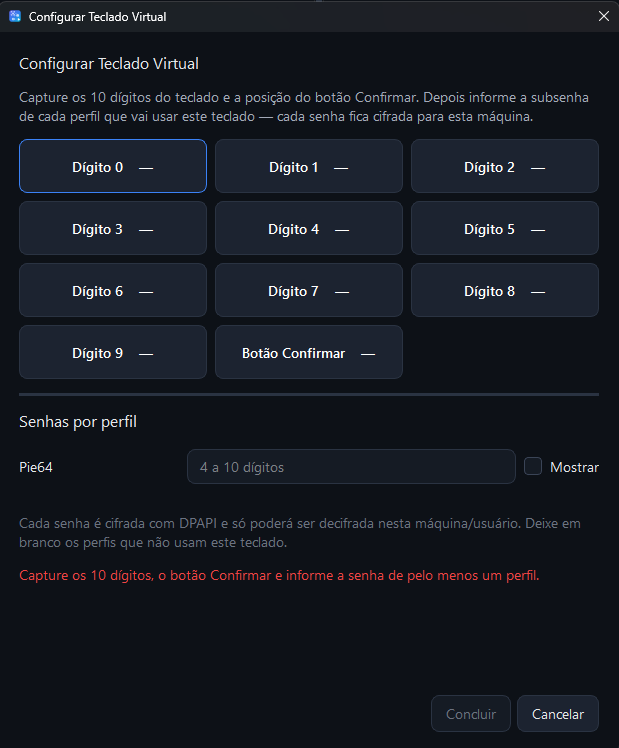
This screen shows EmuloAgent’s virtual keyboard setup, including captured digits, a confirmation button, and password configuration by profile. It is a concrete example of automation that is only possible because the auto click sees the screen before acting — something a coordinate-based clicker could never do with a shuffled keyboard.
Automated actions beyond clicking
After recognizing the screen state, the macro needs to act. EmuloAgent offers a full set of actions to build real flows:
- simple, double, long, or repeated clicks;
- swipes and gestures;
- dynamic waits that wait for the screen instead of a fixed time;
- Android events such as back, home, and recent apps;
- keyboard input, including the virtual keyboard for passwords.
That is the difference between an auto clicker that only repeats taps and a tool that runs an entire routine with decisions.
Profiles and multiple emulators
An automation that works well in one instance may not behave the same way in another. MuMu Player, BlueStacks, LDPlayer, Nox, and ADB connections vary in resolution, scale, and performance. EmuloAgent profiles separate settings by emulator, instance, or flow, letting you organize routines and run automations across multiple emulators when the scenario requires it — useful for both QA and productivity.
How to get started
Creating an image-based auto click in EmuloAgent usually follows a simple path:
- open the emulator and connect the matching profile;
- capture the screen and visually select the image, color, or text used as a reference;
- define the action — click, swipe, wait, or type;
- for passwords, configure the virtual keyboard by capturing the digits;
- run the macro and adjust sensitivity as needed.
No scripts, no complex selectors, and no rewriting code every time the interface changes.
Conclusion
The best image-based auto clicker for Android emulators is not the fastest at tapping the screen, but the one that understands the screen before tapping. EmuloAgent brings together image, color, and text recognition, automated actions, profiles, and — notably — the ability to solve shuffled virtual keyboard passwords, something out of reach for any coordinate-based clicker.
Explore the EmuloAgent product page or get the app from the Microsoft Store.