Automating repetitive Android app tasks often falls into two extremes: scripts that are too technical for a quick interface check, or simple auto clickers that are too fragile for flows that depend on what appears on screen. Visual automation sits between those extremes. It lets you create Android automated tests in emulators and Android macros on a Windows PC using visible interface signals.
EmuloAgent is built for this kind of Windows workflow. It helps users create automations without programming by combining image recognition, text reading with OCR, color detection, visual point and region selection, clicks, swipes, virtual keyboard input, Android events, and profiles for different emulators.
Use automation responsibly. The same features that help QA, mobile testing, and productivity can also appear in searches for Android game macros in emulators. Always confirm the rules of the app, game, or service before automating any routine.
What visual automation means in Android emulators
In visual automation, the tool observes the emulator screen before acting. Instead of always running the same fixed click, a flow can look for an image, read text, check a color, or limit detection to a specific screen region.
That helps when the interface moves, when a button appears after a delay, when a message determines the next step, or when the same macro needs to run in more than one emulator instance. For mobile testing, this approach works well as a practical execution and visual validation layer.
Creating macros without programming
An Android emulator macro can start with a simple sequence: wait for a screen, click a point, swipe, go back, or repeat a step. The workflow becomes more useful when it reacts to what is visible.
In EmuloAgent, users configure actions visually. They can select click points, recognition regions, and gestures directly on the captured emulator screen. That reduces the need to write ADB scripts, create complex selectors, or edit code whenever the interface changes.
For QA, this speeds up repetitive checks. For users who want to create Android macros on a PC, it also avoids relying only on fixed coordinates, which can break when the emulator window changes scale or resolution.
Image recognition
Android image recognition looks for a visual reference on screen, such as a button, icon, card, alert, or state. In practical terms, the macro compares the current screen with an expected image and continues only when the match is good enough.
This is useful for:
- finding a button even when it appears in different positions;
- identifying a specific screen before continuing;
- waiting for an icon or visual item to become available;
- limiting detection to a region of interest to reduce noise;
- adjusting sensitivity when the interface has small visual differences.
In Android automated tests running in emulators, image recognition helps validate visual states without turning every flow into code. In repetitive tasks, it can be more reliable than coordinate-only auto click behavior.
Text recognition with OCR
OCR in Android emulators allows a macro to read text displayed on screen. It is useful when the next step depends on a word, message, button label, alert, or visible result that is not convenient to represent only as an image.
Practical examples include:
- waiting for a success message before continuing;
- tapping a button identified by text;
- checking that a screen loaded expected content;
- choosing different paths when a message appears;
- validating states in mobile automated testing.
For teams already using tools such as Appium in formal suites, visual automation with OCR can complement the process for exploratory checks, repetitive validation, and workflows where the emulator screen is the main source of truth.
Color detection
Not every state needs OCR or image recognition. Sometimes color is the clearest signal: an enabled button, a filled progress bar, a status indicator, an alert, or a region that changes after an action completes.
Android color-based macros can observe a pixel or region and apply configurable tolerance. That helps handle small rendering differences, antialiasing, or theme variations without requiring a full visual match.
Color works best when it represents a simple decision. For more complex flows, combine color with image recognition, OCR, waits, and conditions.
Automated actions
After a macro recognizes the screen state, it needs to act. Common visual automation actions include simple, double, long, or repeated clicks, swipes, dynamic waits, Android events such as back, home, and recent apps, plus keyboard input.
The virtual keyboard is especially useful for shuffled numeric passwords or inputs that need to be configured by visual position. Instead of assuming every digit is always in the same place, users can map keyboard points and run the macro in a more controlled way.
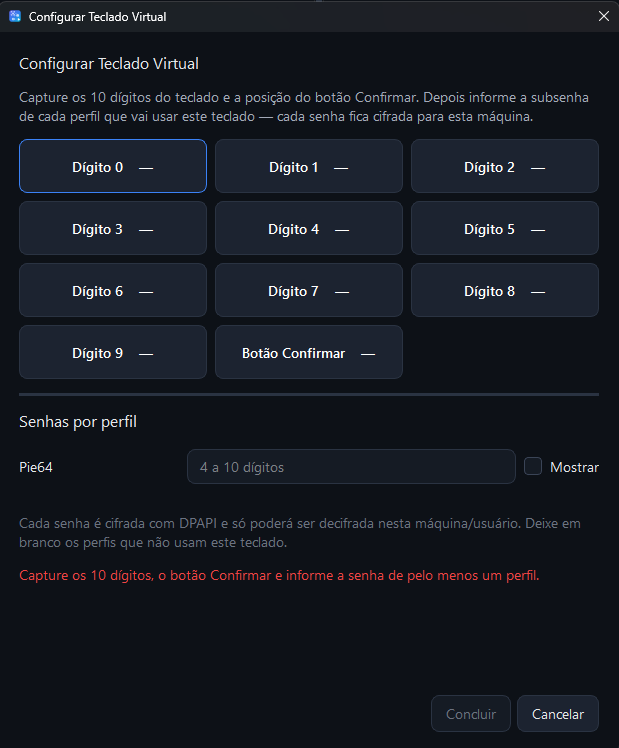
This screen shows EmuloAgent’s virtual keyboard setup, including captured digits, a confirmation button, and password configuration by profile. It is a practical example of no-code Android automation applied to a flow that depends on the emulator interface.
Profiles, multiple emulators, and parallel execution
An automation that works well in one instance may not behave the same way in another. MuMu Player, BlueStacks, LDPlayer, Nox, and ADB connections can vary in resolution, scale, performance, and rendering behavior.
Profiles help keep that organized. They separate settings by emulator, instance, flow, or testing environment. Instead of mixing everything into one generic macro, you can organize routines by profile and run automations across multiple emulators when the scenario requires it.
That matters for both QA and productivity. A team can validate the same flow across different configurations, while an individual user can keep separate macros for repetitive Android app tasks on Windows.
Use cases
Android app interface testing
Use image, text, and color recognition to validate screen loading, buttons, error messages, success states, and journeys that need to be repeated before a release.
Repetitive flow validation
When the same path must be executed many times, macros reduce manual work and make execution more consistent.
Operational Android app tasks
Internal routines, visual checks, controlled input, and repetitive navigation can be automated when the screen provides clear signals.
Macros for Android games and apps in emulators
Some users search for Android game macros in emulators or image-based auto click workflows. Usage must respect the service rules, but the technical pattern is the same: observe the screen, recognize a state, and execute a repetitive action.
Routines that depend on image, text, or color
When fixed coordinates are not enough, combining visual recognition with automated actions makes the flow more resilient.
Conclusion
Creating Android automated tests in emulators does not have to begin with a complex testing suite, and creating Android macros on a PC does not have to be limited to fixed clicks. With visual automation, a flow can see image, text, and color before acting.
EmuloAgent brings those features into a visual Windows experience with profiles, actions, detections, and cloud sync for organizing macros and tests in Android emulators. Explore the EmuloAgent product page or get the app from the Microsoft Store.